QuickBooks Integration for Field Service: Desktop and Online Setup, Sync, and Best Practices
.webp?tr=f-auto,q-80,w-1200,pr-true)
You are running a field-service business. The work gets completed, invoices sit for three days, the accountant re-enters the data into QuickBooks, and then something breaks. Your bookkeeper receives an email nobody wants on a Friday afternoon. It is not a people problem. It is a system gap. That is exactly the kind of problem QuickBooks integration for field service businesses is designed to eliminate.
Why QuickBooks Is the Accounting System Your Field Service Tool Has to Talk To
About 62% of small businesses in the U.S. use QuickBooks for accounting. Across 14 years of conversations with operators in HVAC, plumbing, electrical, alarm, landscaping, and property management, that number matches what I’ve consistently seen in the real world. In most cases, the books are already running in QuickBooks long before anyone starts evaluating field service software. That means the field service platform has to integrate with QuickBooks. If it doesn’t, it either never gets purchased - or it gets bought, quietly resented, and abandoned six months later while the bookkeeper is still re-entering invoices on Saturdays.
This article is the central hub for everything we’ve written about QuickBooks integration for field service businesses. I’ll cover the QuickBooks Desktop vs. Online decision, how a true two-way sync works, invoice and customer mapping, the Undeposited Funds workflow that can quietly break reconciliations, the common mistakes I’ve seen businesses fall into, and where each QuickBooks version actually fits. If a topic deserves a deeper dive, I’ll link to the full article throughout the guide.
One thing I’d like to make clear upfront is that I’m not here to sell you QuickBooks as accounting software. Intuit does not need my help with that. What we are here to discuss is how to make QuickBooks work properly with field service software, so your dispatcher, techs, and bookkeeper are not all working from three different versions of the same customer account.

QuickBooks Desktop vs QuickBooks Online for Field Service: When Each Wins
This is the point where the field service software conversation becomes genuinely interesting. Some of the more popular FSM platforms sync only with QuickBooks Online and offer little to no support for QuickBooks Desktop. If your company already runs on Desktop, that leaves you with two options: migrate to Online - which many established businesses resist for valid reasons - or continue manually re-entering data. When we built the Field Promax QuickBooks integration module, supporting both Desktop and Online was not optional. The businesses contacting us were split almost evenly between the two platforms.
Here’s the full breakdown for operators trying to decide which QuickBooks version makes the most sense for their operation.
QuickBooks Desktop fits when: QuickBooks Desktop still makes sense if your accounting processes are mature, your bookkeeper has used Desktop for years and knows every shortcut, and your business handles complex, long-duration projects such as construction work or large commercial alarm installations. It also remains a practical choice when your office internet is not reliable enough to move payroll and core accounting entirely to the cloud. Desktop still offers features that QuickBooks Online does not fully match, including more precise inventory tracking, stronger job-costing reports, and a more capable Contractor Edition with built-in workflows. Owners on r/QuickBooks frequently describe Desktop as more robust, but also more isolated, which is consistent with what I have observed.
QuickBooks Online fits when: Multiple people may need access at the same time: your dispatcher in the office, your bookkeeper working from home, or your accountant logging in from their own office. If your business is growing, you probably do not want to manage local backups or software version updates. You want field service software to sync data in near-real time without relying on a Web Connector. The online experience has improved dramatically over the past few years, and for shops with fewer than 15 techs and no complex project accounting needs, it is often the best option today.
The nuance most evaluators miss: it's not a permanent decision. Intuit will migrate Desktop data to Online (and the reverse, with some friction). But the day-to-day workflow difference is real, and your field service tool needs to support whichever side you land on. If you're weighing this against alternatives, the comparison of QuickBooks-integrated FSM platforms walks through which products support which version.
How a Real Two-Way QuickBooks Integration for Field Service Works (and What One-Way Sync Quietly Breaks)
When operators ask about QuickBooks integration, the first question I ask is: is it two-way or one-way? Most software platforms that advertise “QuickBooks integration” on their feature pages are actually one-way, push-only systems. They can send invoices into QuickBooks, but they do not pull customer updates back into the field service system. They do not reconcile payments recorded in QuickBooks, and they do not detect when a bookkeeper changes a customer billing address in Desktop and expects that update to appear on the service side as well.
A real two-way sync means that items, tax information, customers, invoices, payments, and credit memos sync in both directions, with conflict rules in place when the same record is edited in both systems. When we built Field Promax’s QuickBooks module, two-way sync was the baseline requirement because I had seen too many shops end up with two separate customer lists that nobody trusted by the end of the month.
What gets synced in a properly built field service-QuickBooks sync:
- Customers and sub-customers (jobs, locations, units in a property management context)
- Service items and product items, with pricing
- Sales tax codes and rates
- Estimates created in the field, pushed to QB when approved
- Invoices generated when a work order closes
- Payments received in the field - cash, check, card
- Credit memos and refunds
- Class and location tracking, if you use them
What usually does not sync and should not: includes payroll, journal entries, bank reconciliations, and vendor bills that are not tied to jobs. Those records belong in QuickBooks. Your field service tool should not modify them.
In a typical 5-to-20-tech shop without integration, owners we have spoken with frequently report spending around eight hours per week re-entering invoices, payments, and job-cost data into QuickBooks. Shops using live two-way sync recover a significant amount of that time because invoices are pushed into QuickBooks the moment a technician clicks send from the field. This is not a marketing statistic. It is a pattern I have heard repeatedly from operators describing what changed after the integration went live.
Setting Up the Sync: Customer Mapping, Item Mapping, and the Things Nobody Warns You About
Across 40 to 60 plumbing and HVAC shops with fewer than 15 techs that we have seen implement QuickBooks integration, the same problems appear repeatedly. Customer records in QuickBooks are often incomplete before the sync is enabled. Item lists have grown organically over the past decade, creating duplicates and inconsistent naming conventions. Sales tax codes were sometimes created by employees who no longer work for the company. Clean up those records before turning on the sync, not after.
Step 1: Audit your QuickBooks customer list. Merge duplicates. Standardize naming - pick one convention and stick to it. Fix billing addresses. If you have sub-customers for properties or jobs, decide whether you want your field service tool to sync at the parent level or the sub-customer level. For property management operators, sub-customer mapping is critical, and we've covered it in depth in the QuickBooks for property management walkthrough.
Step 2: Map your service items. Every service you bill for - tune-ups, diagnostics, drain clearing, and any other line item you sell - should exist as a separate product or service item in QuickBooks. Field service platforms reference those items whenever they send invoices into QuickBooks. If a tech adds an item in the field that does not already exist in QuickBooks, the invoice may fail to sync, create a duplicate item automatically, or post without the missing line item attached. The solution is to build and standardize the item list before going live with the integration, not during day-to-day operations.
Step 3: Map sales tax. This is the area where I’ve seen the most confusion. Shops operating in destination-based sales tax states - where the tax rate is determined by the customer’s address rather than the shop’s location - must configure their field service tool to apply the correct tax rate to each invoice. Make sure the tax settings in QuickBooks align with the tax configuration in your field service tool. Before going live, run a test invoice to confirm everything syncs correctly.
Step 4: For Desktop users, install the Web Connector. QuickBooks Desktop syncs through the Intuit Web Connector - a small utility that runs on the computer hosting QuickBooks Desktop. It regularly checks Cloud Field Service for updates (typically every few minutes) and pushes or pulls changes between the systems. Once configured, the setup is secure, but the computer running QuickBooks Desktop must remain powered on and connected for synchronization to work properly. Many businesses discover this the hard way after a bookkeeper’s laptop stays shut down over a long weekend.
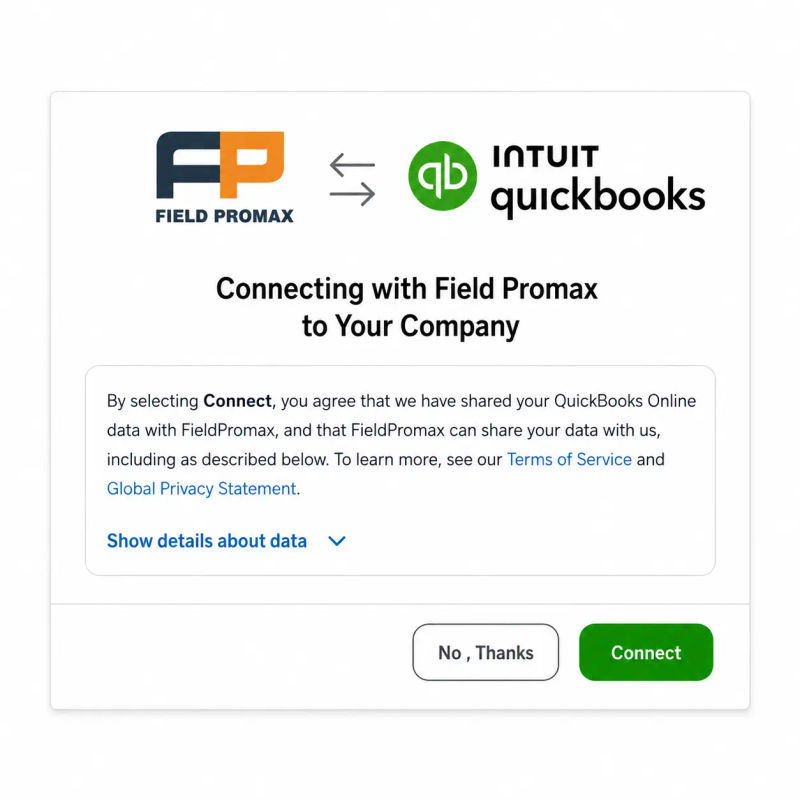
Step 5: For Online users, OAuth connection. QuickBooks Online uses an OAuth authentication handshake. When you log in to QBO through a field service tool, you authorize the connection, and synchronization then occurs in near real time through the API. There is no local utility involved, and no machine needs to remain powered on for the sync to continue running. This is one of the main reasons I generally recommend QBO to operators when their workflow requirements allow for it.
Step 6: Test the full job lifecycle end-to-end. Create a quick estimate, convert it into a work order, close the work order, and let it generate an invoice that flows into QuickBooks. Reconcile the invoice manually. Then receive a payment in the field tool and verify that it syncs correctly. If anything breaks at this stage, fix it before you have 200 invoices waiting to sync.
Estimates to Invoices: The Workflow That Should Just Work
The estimate-to-invoice workflow is the main reason field service operators integrate with QuickBooks. It’s also the process that reveals whether the integration truly works both ways. Here’s how the workflow is supposed to function:
The technician - or office staff - creates an estimate using the field service tool. The estimate is sent to the customer, who approves it from their mobile device. Once approved, the estimate is converted into a work order. The work order is then scheduled, dispatched, and completed. After the tech finishes the job, invoice line items - including labor, parts, and taxes - generated automatically. The invoice is then posted to QuickBooks with the correct customer assignment, properly mapped items, and totals that match exactly down to the dollar.
If you're still creating estimates inside QuickBooks itself, we've written a step-by-step walkthrough of QuickBooks estimate creation including free templates that covers the manual flow. But for any shop running more than a handful of estimates a week, the manual approach falls apart fast. Field service shops without accounting integration typically sit on completed jobs for 5 to 7 days before the invoice goes out - because someone has to find the job ticket, key the line items into QB, and email it. For a shop that flips on QuickBooks sync, that same invoice posts the day work wraps. The days-to-invoice gap drops from 5-7 days to under 24 hours. That gap is real cash flow.

Undeposited Funds: The Workflow That Quietly Wrecks Reconciliations
If I had to name the single most misunderstood part of the QuickBooks-field service relationship, it would be the Undeposited Funds account. It’s a byproduct of how QuickBooks handles received payments, and it’s where many of the reconciliation issues I’ve seen tend to originate.
Short version: When an employee collects cash, checks, or card payments and the transaction flows into QuickBooks, the payment is typically routed into a holding account called Undeposited Funds instead of directly into your bank account. The purpose is to group multiple payments - such as several checks collected throughout the day - into a single bank deposit that matches what appears on your bank statement. In simple terms, Undeposited Funds acts as a temporary holding area for payments waiting to be combined into a deposit.
The problem begins when no one actually clears those payments out of Undeposited Funds by grouping them into deposits. The payments simply remain there indefinitely. I’ve seen shops with five-figure balances sitting in Undeposited Funds for months because the workflow was never fully completed. The bookkeeper sees revenue recorded, and the owner sees money in the bank account, but the reconciliation between the two no longer matches properly.
When field service tools push payments into QuickBooks, they typically push to Undeposited Funds by default - which is correct QB behavior. It's then on you or your bookkeeper to group those payments into deposits that match your bank statement. The full step-by-step lives in the clearing undeposited funds in QuickBooks Online walkthrough. Read it before your first month-end.
Another thing to be aware of: if you process credit card payments through a separate provider - such as Stripe, Square, or the payment processor built into your field service platform - the payments may be batched together before being deposited, often with processing fees deducted. Your QuickBooks sync needs to account for this properly. Otherwise you'll show $1,000 collected, $970 deposited, and a $30 mystery you'll spend an hour hunting.
A Multi-Trade Shop's QuickBooks Sync Pattern: What Works When You're Running HVAC and Plumbing Under One Roof
Multi-trade operators often run into the same issue: a QuickBooks configuration that worked well for a single-trade shop begins to break down once additional trades are added. The original chart of accounts was not designed to separate HVAC revenue from plumbing revenue. Service items may also overlap - for example, a “diagnostic visit” may exist for both trades, even though labor costs differ significantly between them. Job costing can quickly become inaccurate when plumbing parts and labor categories are mapped inconsistently based on whichever item a tech selects from the list.
One owner-operator we’ve worked closely with managed HVAC and plumbing teams across a mid-sized Midwest metro, supported by a dispatcher and roughly two dozen technicians. During a particularly busy spring and summer season, the company repeatedly double-booked technicians licensed for both trades because the dispatcher was managing two separate calendars and reconciling conflicts manually from memory. On the QuickBooks side, revenue reporting had also become unreliable. The chart of accounts and service items had expanded organically over time, making it difficult to accurately measure the performance of each trade. By midweek, the recurring problem was that no one fully trusted either the scheduling calendar or the revenue split reports.
The solution was not a software problem, it was a configuration problem. The owner consolidated the two dispatch boards into a single calendar within the field tool, this forced every booking to pass through one scheduling system from the start, even when the plumbing team initially resisted the change. He also restructured the QuickBooks item list and class tracking setup so that every invoice was tagged by trade. The first version of the class structure was implemented before the bookkeeper had reviewed it, and she later made a minor adjustment after discovering that one class was not properly capturing revenue from service agreements. The revised structure proved far more reliable. After an initially difficult adjustment period, double-bookings largely disappeared because the unified calendar exposed conflicts that had previously gone unnoticed. Revenue-by-trade reporting also became far more trustworthy.
The main lesson I’ve learned from this setup and from similar situations in other multi-trade shops is that QuickBooks integration is only as effective as the QuickBooks configuration it’s built on. The sync doesn't fix bad data structure. It just pushes bad data faster.
Reconciliation Pitfalls and the Errors Operators Actually Hit
Owners on r/QuickBooks and r/Bookkeeping frequently discuss the same reconciliation issues that arise when field service tools sync data with QuickBooks. Here are some of the most common problems - because being aware of them early is far better than discovering them during reconciliation.
Duplicate customers. A customer listed as “Smith Residence” in the field tool and “John Smith” in QuickBooks may not match during synchronization. As a result, the sync can create a duplicate customer record, leaving you with two separate entries for the same customer. The best way to avoid this issue is to clean and standardize your customer list before the first sync, then establish a single authoritative source - usually QuickBooks - moving forward.
Mismatched tax codes. Your field tool calculates sales tax at $87.45, while QuickBooks calculates it at $87.43 due to a rounding difference. The invoices still process correctly, but a two-cent discrepancy remains. Multiply that across 800 invoices per year, and you end up with a reconciliation issue that no one can fully explain by October.
Items that don't exist in QB. A tech may add a line item in the field that does not exist in the approved item list. Depending on the sync settings, the invoice may fail to sync, create a new item with an incorrect mapping, or sync with the line item removed entirely. None of those outcomes are good. The solution is to enforce strict item-list discipline before the system is rolled out to technicians.
Manual edits on both sides. Someone updates a customer’s address in QuickBooks. An hour later, someone else updates the same customer’s address in Field Promax. Which version wins? That depends on the sync rules. Most two-way sync systems operate on a “last write wins” model - but that approach doesn’t help if the latest update is incorrect. The best practice is to designate Field Promax as the operational source of truth and QuickBooks as the accounting source of truth, then train the team to follow those rules consistently.
Cryptic QuickBooks error codes. Forum users frequently encountered a number of errors - 3371, 6176, 15276 - which prevented users from opening company files or making payroll updates. They're not sync errors, they're QB itself being erratic. However, they disrupt the workflow that your field tool relies on. The solution is typically the run of a QB repair tool or a complete reinstallation: however the cost is real.
Anyone using QB Desktop on a network: multi-user mode adds another layer of difficulty. The sync engine requires access to write the company's file, which implies that the file has to be in the correct hosting mode. Find out the issue with your IT specialist prior to it affecting you at the end of the month, and not in the middle of the month.
Accounting manual data entry has a 1 to 4% error rate per industry research, while automated sync increases accuracy to 98 to 99%. If a shop is manually entering invoices into QuickBooks, the error rate is quietly translating into inaccurate totals, mismatched costs for jobs, and reconciliation searches each month. Shops that are running an active QB sync can see the mistakes disappear.
| Sync Error Type | Root Cause | Fix |
| Duplicate customer record | Name mismatch between FPM and QB | Merge duplicates in QB before sync; standardize naming convention |
| Tax amount mismatch | Rounding differences between field tool and QB tax calculation | Align tax codes in both systems; test with sample invoice |
| Invoice fails to sync | Line item not found in QB item list | Build out price book in FPM before go-live; sync item list first |
| Duplicate invoice number | Invoice created manually in QB after integration went live | One system for invoices only; renumber conflicting invoice and re-push |
| Payment not reconciling | Payments sitting in Undeposited Funds, never moved to deposit | Weekly Undeposited Funds review; group payments into deposits same day |
| Sync stops running (Desktop) | Web Connector machine went offline or into sleep mode | Set connector machine to never sleep; verify hosting mode for network QB |
Vertical Flavors: How QuickBooks Integration Looks Different by Trade
Field service isn't a single sector. The QuickBooks setup that works well for an HVAC shop isn't the best for a security and alarm firm, and doesn't fit with a property management operation, as well as general contractors. This is how the integration tends to change vertically in my experience.
HVAC. Service agreements are the QB modeling problem. A multi-year maintenance contract that is invoiced each year generates deferred revenue. Field tools must provide the correct invoice timing, the QB charts of accounts must have the correct Deferred Revenue account. Shops that are able to do this have clear recurring revenue reporting. Shops that don't end with sloppy up revenue or an accountant who gets annoyed every quarter.
Alarm and security. Recurring monitoring revenue is the dominant pattern. The integration needs to handle monthly recurring billing cleanly - with annual price escalations on the contract anniversary - and it needs to keep monitoring revenue separate from install revenue in QB. We've written about the specific tools that handle this in the alarm billing software with QuickBooks integration roundup.
Plumbing. Heavy on parts and materials, and therefore the item-list discipline is more important than in many trades. A plumber who is pulling half-dozen fittings, flappers, along with a wax-ring must have all of these items in QB that have an accurate price and markup. Otherwise job costing reports will lie to you.
Property management. Sub-customer structure is everything. Each property is a customer, each unit a sub-customer, each tenant tied to a unit. The QB integration has to handle this hierarchy or your owner statements at month-end are a mess. The full property management QB walkthrough goes deep on this setup, including the two-company-file approach that most operators eventually land on.
Contracting and construction. Job costing is the whole game. Every labor hour, every material purchase, every subcontractor invoice needs to land against a specific job in QB so you can see project profitability. The contractor-focused QuickBooks Online walkthrough covers when QBO is enough versus when Desktop's job-costing depth is necessary.
Multi-entity operations. If you run more than one company - a holding LLC and an operating LLC, or franchise locations under one umbrella - you'll need multiple companies set up in QuickBooks. The field service tool has to know which company file to push to.

Best Practices: What Long-Running Operators Do Differently
Across the operators who've run QuickBooks integration successfully for years, certain patterns appear consistently.
One source of truth per data type. Customers are in QB and are pushed onto the field tool. Items that live in QB are pushed into the field tool. Schedules and jobs are within the field tool. Don't attempt to manage them in QB. Time entries are stored inside the field tools, and they are then pushed into QB invoices for labor. Select the source of every data type, and adhere to it.
Reconcile weekly, not monthly. Owners who reconcile their bank accounts every Friday spot issues with the sync process while they're small. The owners who wait until the end of the month have to spend two days figuring out the problem that broke three weeks ago.
Train one person to own the integration. Usually the bookkeeper or office manager. They're the ones who understand exactly what "Undeposited Funds" means, can spot when a tax code mismatch appears, and monitor the sync log. When everyone owns it, no one truly owns it.
Don't let item lists grow organically forever. Once every quarter, audit the QuickBooks item list. Merge duplicate entries. Archive unused items. Update prices that have drifted over time. A cleaner item list, the cleaner invoices and more accurate reports.
Test before the busy season. When you implement any changes to the sync - upgrading QB's version, moving from Desktop to Online, altering the field tool, adding a payment processor - make sure you test it from end to end prior to the peak season. Do not discover a problem during the busiest week of the year.
"An HVAC contractor on the QuickBooks App Store described the value of clean integration as letting a small shop operate as if it were bigger, because the appointment emails, the invoices, the job costing, and the bookkeeping all flow without anyone manually moving paper between them." That's the operator pattern. The shops that get this right look bigger than their headcount because the back office isn't a bottleneck.
- Joy Gomez, Founder of Field Promax
And it shows up in the numbers. A service business that we work with mentioned the various features they needed - scheduling, estimates, work orders, dispatch as well as the QuickBooks Online integration as the reason that improved their efficiency in both the field and at the office. Good integration will get you the ability to reduce time, keep errors reduced, and cash in quicker.
When QuickBooks Integration Isn't Enough (and What to Do About It)
I should be honest about the instances in which QuickBooks integration alone isn't enough to solve the issue.
If you're managing thousands of recurring monthly invoices - large alarm monitoring base, large property portfolio - QB Online has performance ceilings and you might require QB Desktop Enterprise or a genuine ERP. Field service tools are still able to communicate with these systems, though the connection becomes more custom.
If you have heavy inventory management needs - a parts warehouse with serial numbers inventory, multiple locations - QB inventory management isn't designed for this. It is possible that you will end up having an inventory management system that is integrated with QB, and the field tool must manage the three-way data flow
If your accountant uses Xero or another platform, that's a real decision. Field Promax integrates with Xero alongside QuickBooks, so the choice doesn't have to be locked to one accounting system. But your integration story has to match wherever the books actually live.
If QuickBooks itself is the cause of the frustration - obscure errors, failures to update payroll, slow performance - no field service integration is going to repair QB itself. It's a different conversation to have with your bookkeeper or QB ProAdvisor.
Picking the Right Field Service Tool for QuickBooks: What to Actually Evaluate
If your operators ask how to access field service tools on the QuickBooks integration aspect, here's the checklist I offer them.
Does it support QB Desktop or only QB Online? If you're using Desktop, it's an actual filter. Some of the more popular FSM platforms do not support Desktop in any way. This alone is enough to disqualify them from the majority of shops.
Is the sync two-way or one-way? Ask specifically. "Integrates with QuickBooks" on a feature page could be interpreted as either. Two-way is the way to go.
What syncs in the integration? Customers, items, taxes, invoices, payments, credit memos. If any of these are missing, you're likely to have to manually enter that data category for a long time.
How does it handle Undeposited Funds? A well-designed integration can push the payments into Undeposited funds (correct QB behavior) and provides you a workflow to remove funds. A poor integration may either leave out Undeposited Funds completely - which causes bank reconciliation to fail - or pushes all payments to it, and ignores it.
How does it handle errors? When a sync fails - an error in the network, or invalid data - does it store the failed records and then retry? Does it report the issue to a human? Or does it silently disappear?
What's the setup time? A real two-way QB integration takes time to configure. Anyone claiming it’s a five-minute process is either underestimating the work involved or overestimating the capabilities of the integration.
A detailed breakdown of how the major field service tools compare on these dimensions lives in the top FSM software compatible with QuickBooks listicle, and the alarm-specific roundup goes deeper for security operators. To see how Field Promax handles the QuickBooks integration specifically, our QuickBooks integration page walks through the Desktop and Online setup.

KPI Benchmarks: What Changes When the Sync Goes Live
Below are the numbers that show what operators across all trades will typically experience before and after integrating FSM with QuickBooks. Benchmarks do not guarantee results. The results depend on shop size and how efficiently the configuration is carried out. But the direction remains consistent.
| KPI | Without Integration (Typical) | With FSM-QB Integration (Benchmark) | Source |
| Days Sales Outstanding (DSO) | 18-28 days | 7-14 days | FieldCamp / Industry benchmark, 2025 |
| Invoice-to-send time | 1-5 days post-job | Same day (under 1 hour) | Fieldproxy, 2025 |
| Admin hours per week (data entry) | 15-20 hours | 3-5 hours | Multiple FSM industry sources, 2024-2025 |
| Data entry error rate | 1-4% of entries have errors | Under 1% with automated sync | Industry research / Zapier, 2024 |
| Invoice accuracy rate | 85-90% | 97-99% | Field service operations industry estimate |
| Time to financial close (month-end) | 5-10 business days | 2-3 business days | QuickBooks / FSM user reports |
| Revenue visibility lag | Days to weeks | Real-time | Fieldproxy / Optsy, 2025 |
Year-by-Year: FSM Market Growth and QuickBooks Integration Adoption
| Year | FSM Market Size | QuickBooks Online Subscribers | Key Development |
| 2020 | ~$2.8B | ~4.5M | COVID accelerates digitization; paper-based field operations come under pressure |
| 2021 | $3.24B | ~5.2M | FSM market formally valued at $3.24B; QBO growth surges (Intuit annual filings, 2021) |
| 2022 | ~$4.1B (est.) | ~5.8M | QB Online revenue up 26% YoY; FSM-QB integration becomes standard product expectation |
| 2023 | ~$5.0B (est.) | 6.5M | QB Pro/Premier discontinuation announced for Aug 2024; QBO becomes de facto standard (FitSmallBusiness, 2024) |
| 2024 | ~$6.1B (est.) | ~7M (est.) | QB Pro/Premier discontinued for new users; Desktop integration support narrows |
| 2025 | ~$7.0B (est.) | ~7.5M (est.) | AI features roll out in QBO; on-site payment integration goes mainstream for SMB trades |
| 2028 (projected) | $8.06B | N/A | FSM market projection; most SMB Desktop users transitioned to QBO (Dancing Numbers / Intuit) |
Conclusion
QuickBooks integration isn't a feature - but it is a restriction for every field-service software decision companies make. Over the course of 14 years of conversations with operators, I've seen the difference between shops that do this right and those who do not. The ones who get the right answer have a single source of truth for each data type, a bookkeeper who manages the integration and a workflow where invoices are sent out after work closes. The ones who don't have spreadsheets that reconcile two systems, a back office which spends weekends catching up, and revenue numbers that nobody can trust.
If you're choosing a field service tool, then the QuickBooks issue is the primary selection. In addition, the level of integration - two-way, Desktop and online assistance, Undeposited Funds handling, error recovery - is what differentiates the tools which sound good during a demo from the tools that perform well in the month-end.
Frequently Asked Questions

Founder and CEO
Joy Gomez is an engineer, process automation expert, and the Founder of Field Promax. Known for his technical expertise and commitment to field service innovation, Joy writes about transforming traditional business models into paperless, efficient operations. He is a Lean Six Sigma Black Belt based in Rochester, MN, dedicated to helping field professionals work smarter through better technology.
Reviewed by

Content Creator
Bhargavi Halthore is a content writer at Field Promax, a field service management platform serving trades businesses across the USA and Canada. With over a decade of experience writing for business owners, she brings detailed, ground-level insight to every topic she covers. Her research goes beyond search results - she digs into LinkedIn groups, Facebook communities, and Reddit forums to understand what field service business owners are actually dealing with on the ground. She speaks directly with industry professionals, understands their day-to-day challenges, and translates that into content that is practical and actionable. What you read in her articles reflects real industry patterns, not theory.