Inventory Management Software for Field Service
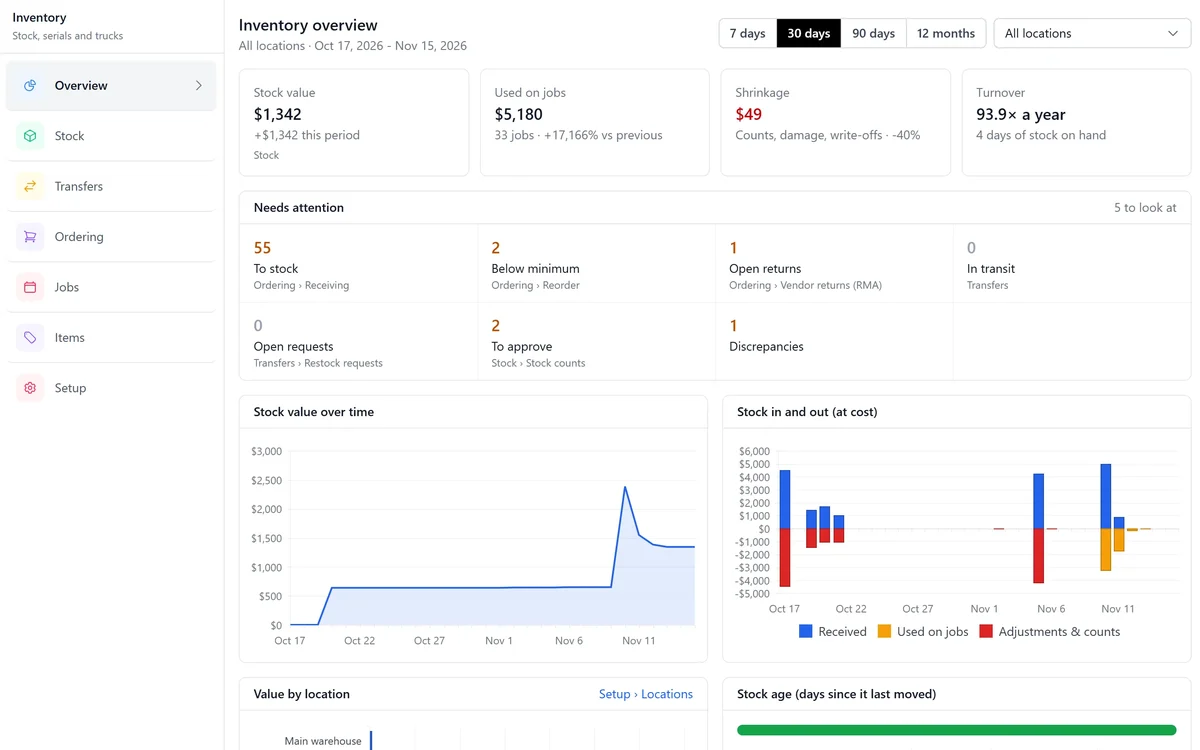
Know what is on the shelf, on the truck and on the job.
Field Promax inventory tracks stock at every warehouse, shop and truck, by count, by serial number or by the reel. Each work order shows what the job needs, what you already hold and what still has to be ordered. Technicians see their truck's stock on the phone, mark parts used on site and ask the office for more, and low stock turns into draft purchase orders, one per vendor.
Trusted by 100,000+ contractors. Rated 4.7 on Google and 4.2 on Capterra.
Every Job Shows What You Hold and What to Order
On the invoice, in stock, on order, received, used.
The work order's Parts & POs tab reads the stock parts on the invoice and shows, for each one, how many you hold and where, what is on order, what has arrived and what was used. Only what is short is ticked to order, and one click opens a purchase order with the part, quantity, last cost and job already on the line. The job reads Awaiting Parts until the delivery is in, then Parts Ready. If more was used than the invoice says, an amber note names the part. Inventory never changes the invoice.
Request Demo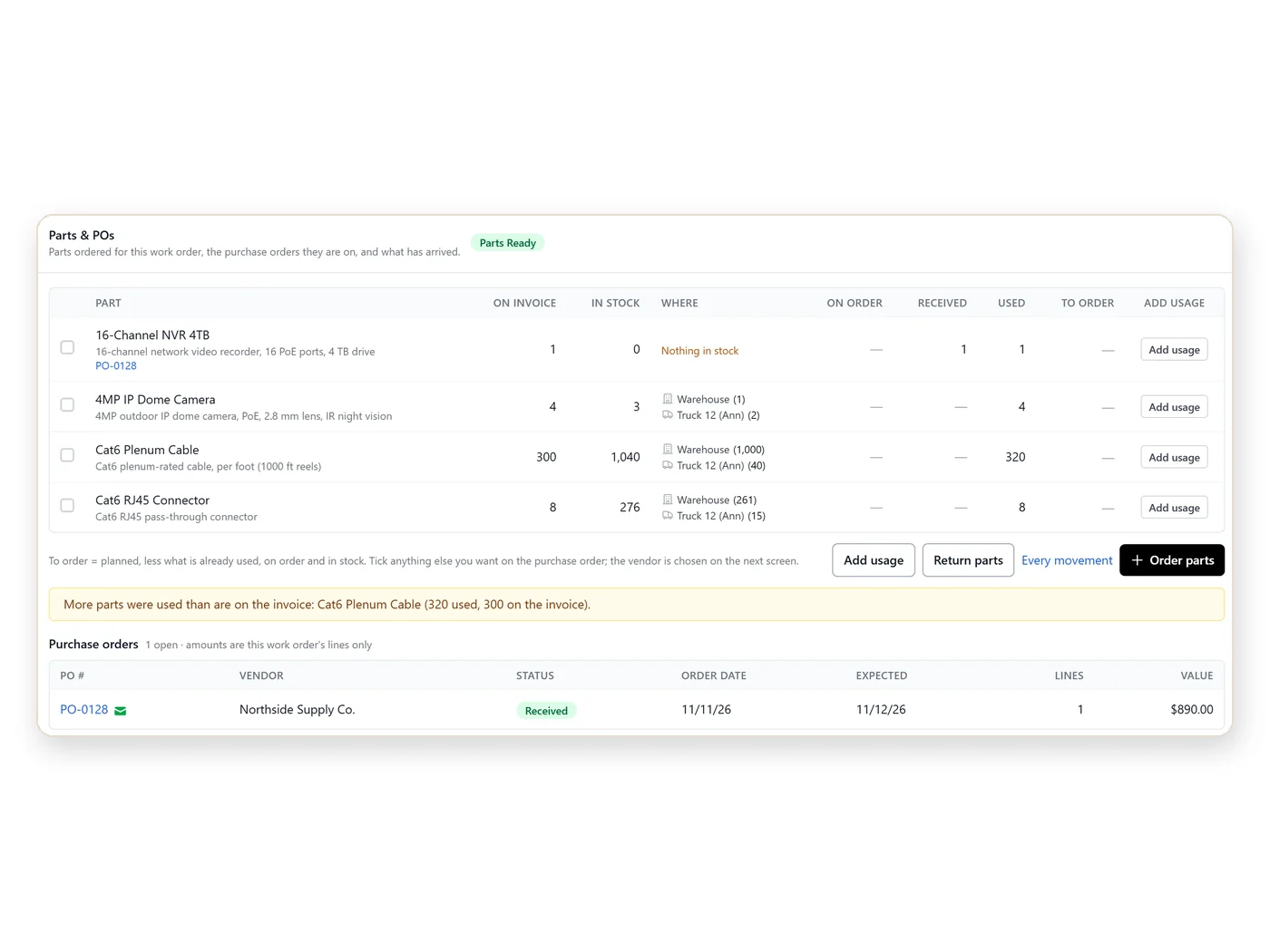
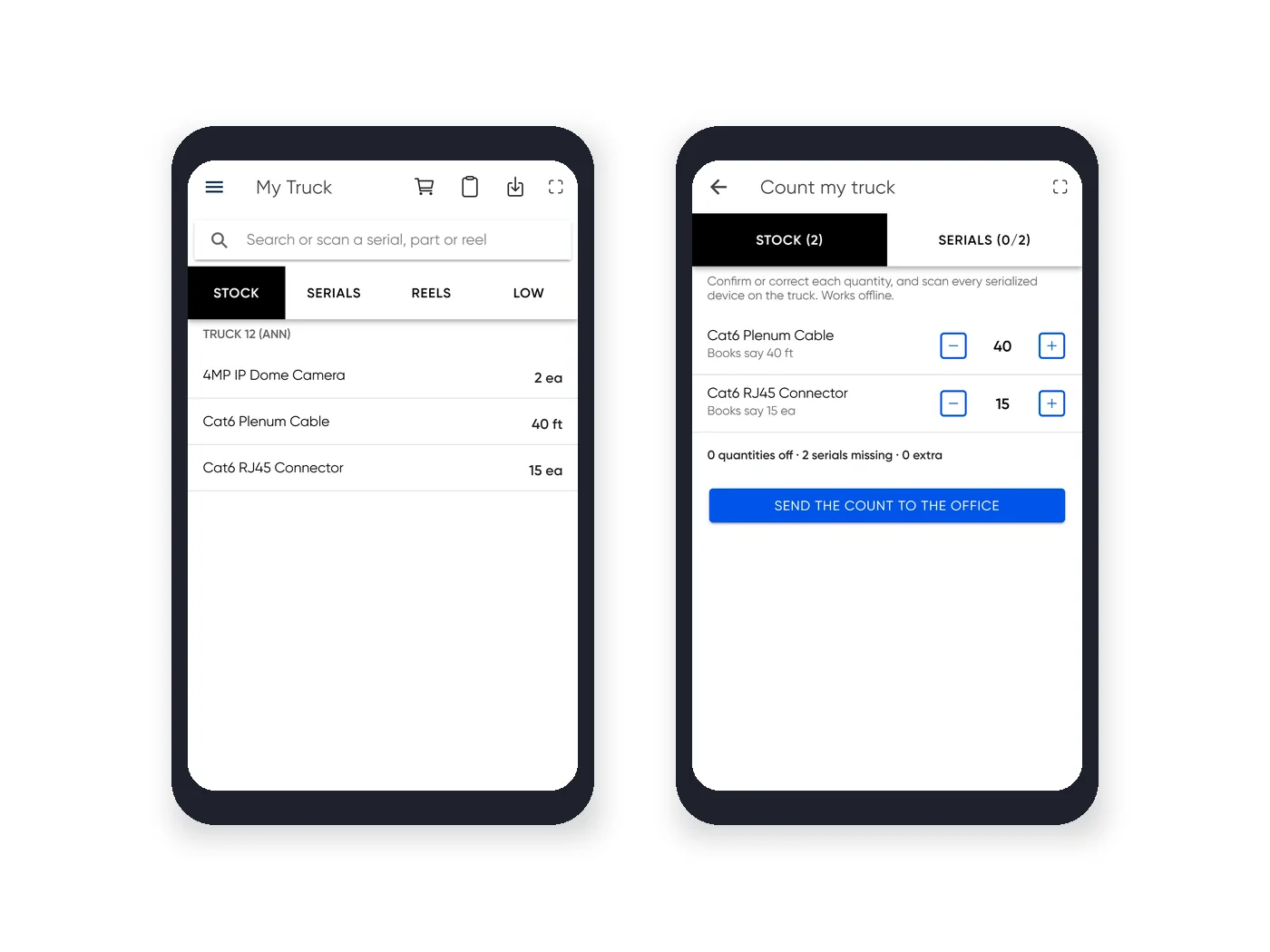
The Truck's Stock, on the Technician's Phone
Scan it, use it, count it, ask for more.
My Truck shows what is on the truck the technician's vehicle is assigned to today. Technicians scan a barcode, serial or reel label with the phone camera or a Bluetooth scanner, mark parts used on the job, accept transfers from the warehouse and send restock requests to the office. Once a week they count the truck from the phone. Marking parts used and counting work offline and sync when there is signal; receiving a purchase order onto the truck needs a connection.
Request DemoInventory That Keeps Up With the Work
From the warehouse shelf to the truck to the customer's wall:
Warehouses, Trucks and Bins
Set up warehouse, shop, truck, staging and quarantine locations, plus bins for a shelf or slot. Every location shows on hand, reserved and available for each item, and you can print QR label sheets.
Serialized, Bulk and Cable
Track each item by serial, by count or by the reel and its length. A serial scanned in when stock arrives follows the unit onto the truck, into the job and onto the customer's Installed devices tab with its warranty end date.
Min/Max and Reorder
Set a minimum and maximum per item, per location. Reorder lists what is low, suggests the quantity that gets you back to the max less what is already on order, and writes one draft purchase order per vendor.
Transfers and Restock Requests
Ship stock from the warehouse to a truck and it shows as in transit until the technician accepts it on the phone. A restock request sent from the truck becomes a draft transfer in one click.
Stock Counts and Variance
Run cycle or full counts, blind if you want the counter not to see the books. Nothing posts until a count is approved, and the variance report shows where stock goes missing by date, location and item.
Kits for Standard Jobs
Group the parts you always use together into a kit. Add the kit on the work order or on the phone and every part is recorded at once, so nothing is forgotten. If any part is short, nothing is added.
Frequently Asked Questions
It keeps count of the parts and materials you hold, where they are and where they went. In Field Promax, stock is tracked at each warehouse, shop and truck. Every receipt, transfer, part used on a work order, return, count and adjustment is recorded with who did it, so you can see what is on hand, reserved and available at every location.
Yes. A truck is just another location, linked to its vehicle, and the technician comes from that vehicle's assignment in Fleet. On the phone, My Truck shows what is on the truck today. Technicians can search, or scan a barcode, serial or reel label with the camera or a Bluetooth scanner, and accept transfers the warehouse ships to them.
Pick which products to track and how: Serialized (one serial per unit), Bulk (count only) or Cable (reels, by length). Then open Opening balances, upload or paste a CSV, match its columns, check the rows and import. Serialized items take one row per serial and cable takes one row per reel, with the length as the quantity.
Set a minimum and maximum for each item at each location. Reorder lists every part below its minimum with its preferred vendor and suggests the quantity that brings it back to the maximum, less what is already on order. Tick the parts, click Create POs, and Field Promax writes one draft purchase order per vendor for you to check and send. See purchase orders and vendor bills.
The work order's Parts & POs tab reads the stock parts on the invoice and shows what is in stock and where, what is on order, what has arrived and what was used. Anything short can go on a purchase order in one click, and the job shows Awaiting Parts until the delivery arrives, then Parts Ready. Inventory never changes the invoice. If more was used than the invoice says, an amber note names the part so the office can bill it.
Mostly. Technicians can mark parts used on a job with no signal; it saves on the phone and syncs later. The weekly truck count works offline too. Receiving a purchase order onto the truck at the supply house needs a connection.
Start a cycle count for the items you pick or a full count for a whole location, and tick Blind count so the counter does not see the books. Technicians send weekly truck counts from the phone. A count moves no stock until someone approves it, and stock that moved after the count was taken is allowed for. You can reject a count with a reason, and the variance report shows every approved change by date, location and item.
Yes. Upload a distributor's price file, match the vendor part number and cost columns, and preview every change, with large changes over 50 percent called out, before you apply it to the vendor's catalog. Vendor returns (RMA) track defective units going back for repair, replacement or credit, with the vendor's RMA number, carrier and tracking number.
Yes. Field Promax keeps the quantities, locations and serials, and QuickBooks gets the dollars. An approved vendor bill goes to QuickBooks Online in one click, or to QuickBooks Desktop on the next Web Connector sync. With QuickBooks Online you can also post one inventory journal a day and reconcile your stock value against the Inventory Asset balance. The valuation report values your stock on any date either way.
Inventory comes with the Premium plan at no extra charge. Premium is $319 a month, billed annually. See plans and pricing.